

Poster Printing Machine Advanced Features Guide
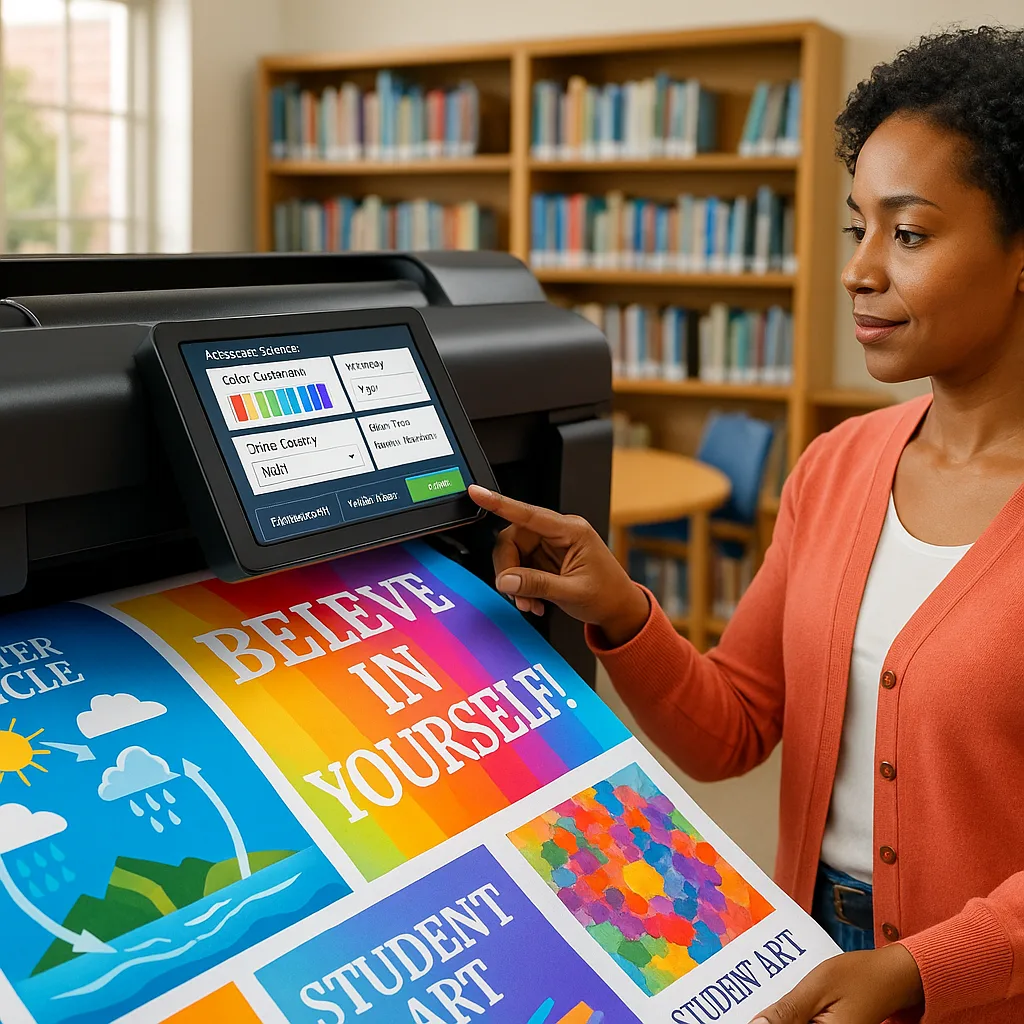
As a school administrator who’s spent countless hours working with educational technology, I’ve discovered that most schools use only about 30% of their poster maker’s capabilities. Today, I’m excited to share the poster printing machine hidden features that can revolutionize how you create visual learning materials.
Understanding Your Poster Printing Machine Hidden Features
Most educators treat their poster printing equipment as simple large-format printers. However, these machines are sophisticated tools designed with educational environments in mind. Let me walk you through the advanced capabilities that often go unnoticed but can significantly enhance your visual materials.

Advanced Print Settings for Professional Results
Your poster printing machine comes equipped with sophisticated print settings that most users never explore. These settings control everything from color density to paper handling, and mastering them can dramatically improve your output quality while reducing costs.
First, let’s explore resolution settings. While most prints default to 300 DPI, educational posters viewed from a distance can achieve excellent results at 150-200 DPI. This adjustment can cut your ink usage by up to 40% without noticeable quality loss. For detailed diagrams or text-heavy materials, maintain the higher resolution only where needed.
Next, explore the print mode options. Most banner printing machines offer multiple modes: Draft, Normal, Best, and Custom. The Custom mode unlocks granular control over ink density, drying time, and color saturation. For laminated posters, reducing ink density by 10-15% prevents oversaturation and improves adhesion.
Color Management Mastery
Understanding color management transforms good posters into great ones. Your school’s poster printing machine likely includes built-in ICC profiles for various paper types. However, creating custom profiles for your specific media can yield remarkable improvements in color accuracy and consistency.
Start by calibrating your monitor to match your printer output. This simple step eliminates the frustration of prints not matching what you see on screen. Most modern poster printing machines include calibration utilities in their software suite. Run this monthly to maintain consistency.
For schools using the Campus Pro 44 Poster Maker Elite Package, the advanced color management features include spot color matching and Pantone emulation. This ensures your school colors print consistently across all materials, from classroom posters to outdoor banners.
Multi-Page Printing and Tiling Techniques
One of the most underutilized features of banner printing machines is their ability to create oversized displays through intelligent tiling. This technique allows you to print murals and displays larger than your printer’s maximum width by dividing the image into printable sections.
Setting Up Poster Printing Machine Hidden Features for Tiling
Most poster design software includes built-in tiling features, but the key to professional results lies in proper overlap settings. Set your overlap to 0.5-1 inch with alignment marks enabled. This provides enough margin for precise assembly while minimizing waste.
When creating tiled prints, always use the same paper batch and print all sections consecutively. This prevents color variations between tiles. For critical projects, print a small test strip from each tile section to verify color matching before committing to full-size prints.
Advanced Media Handling
Your poster printing machine can handle far more media types than standard poster paper. Understanding each media’s requirements unlocks new creative possibilities for your educational materials. Let’s explore some advanced options that can transform your visual communications.
Canvas printing creates museum-quality displays perfect for permanent installations. Adjust your printer’s suction settings and increase drying time by 50% for optimal results. The Amplify Poster Maker excels at canvas printing with its advanced media detection system that automatically optimizes settings.
Vinyl and adhesive materials open possibilities for floor graphics, window clings, and durable outdoor signage. These materials require specific temperature settings and slower print speeds. Enable your printer’s specialty media mode and reduce print speed to 50% for crisp, smudge-free results.
Workflow Optimization for Volume Printing
Schools often need to produce multiple posters efficiently. Your poster printing machine likely includes batch processing features that can dramatically reduce production time. Here’s how to set up an efficient workflow that maximizes productivity while maintaining quality.
Create print presets for common poster types: classroom rules, event announcements, educational infographics, and student work displays. Each preset should include paper size, quality settings, color profile, and finishing options. This standardization ensures consistency and allows any staff member to produce professional results.
Implement a naming convention for your files that includes date, department, and purpose. This simple practice makes reprinting and updating materials effortless. Combined with your printer’s job storage feature, you can reprint popular posters without accessing the original files.
Maintenance Features That Extend Equipment Life
Built-in maintenance features go beyond basic cleaning cycles. Your banner printing machines include diagnostic tools that predict potential issues before they cause downtime. Access these through the printer’s service menu to monitor ink levels, printhead health, and paper path condition.
Schedule automatic maintenance during off-hours to prevent disruption. Most modern printers allow you to set cleaning cycles for nights or weekends. This proactive approach extends printhead life by up to 50% and maintains consistent print quality throughout the school year.
Cost-Saving Features You’re Missing
Hidden within your poster printing machine are numerous cost-saving features that can significantly impact your budget. Understanding and utilizing these features helps stretch your resources while maintaining quality output for all your educational needs.
Ink-saving modes go beyond simple draft printing. Modern firmware includes intelligent ink reduction algorithms that maintain color vibrancy while using 20-30% less ink. This feature analyzes each image and selectively reduces ink in areas where the difference is imperceptible.
Media optimization features prevent waste by detecting paper size and automatically adjusting layouts. Enable auto-rotate and nesting functions to maximize paper usage. When printing multiple smaller posters, the nesting algorithm can reduce paper waste by up to 40%.
For detailed cost tracking, explore our comprehensive printing cost breakdown to understand exactly how these features impact your bottom line.
Quick Reference Guide
Featured Products
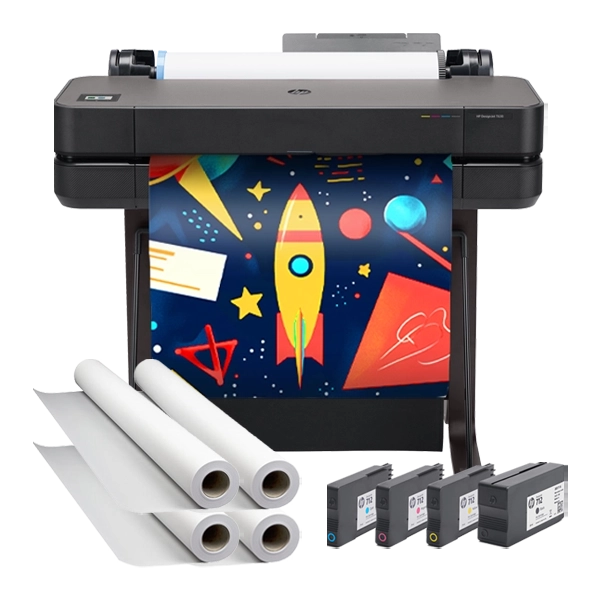
Classroom Pro 24 Advanced Package
Perfect for discovering advanced features with comprehensive software suite
Pro Tip of the Week
Enable your printer’s “Economy Mode” for draft prints, then switch to “Photo Mode” for final versions. This two-step process can reduce ink costs by 60% during the design phase!